Data Transfer To and From Clusters

Globus Personal Connect

Setup on the Client Server/Computer

Install the prerequisites, download the tarball and unpack it in your home directory or put it in a central location. 

https://docs.globus.org/globus-connect-personal/install/linux/

[c@asha ~]$ wget https://downloads.globus.org/globus-connect-personal/linux/stable/globusconnectpersonal-latest.tgz
…..
Saving to: ‘globusconnectpersonal-latest.tgz’

100%[=====================================================================>] 129,825,343 68.8MB/s in 1.8s

2024-04-19 10:54:21 (68.8 MB/s) – ‘globusconnectpersonal-latest.tgz’ saved [129825343/129825343]

[c123456789@hpc-submit1 ~]$ tar xvf globusconnectpersonal-latest.tgz
globusconnectpersonal-3.2.3/
globusconnectpersonal-
3.2.3/globusconnect
globusconnectpersonal-3.2.3/LICENSE
…..
globusconnectpersonal-3.2.3/yellow.gif
[c@asha ~]$cd globusconnectpersonal-3.2.3

Setup your endpoint (AKA collection)

[c@asha] globusconnectpersonal-3.2.3]$ ./globusconnectpersonal -setup
Globus Connect Personal needs you to log in to continue the setup process.

We will display a login URL. Copy it into any browser and log in to get a
single-use code. Return to this command with the code to continue setup.

Login here:
—–
https://auth.globus.org/v2/oauth2/authorize?client_id=4d6448ae-8ca0-40e4-aaa9-8ec8e8320621&redirect_uri=https%3A%2F%2Fauth.globus.org%2Fv2%2Fweb%2Fauth-cod

Atransfer.api.globus.org%

3Agcp_install&state=_default&response_type=code&code_challenge=l11vLMswmAdVB_5m8ztkdKujRCTgLimjMphKN4Zx3CM&code_challenge_method=S256&

access_type=online&prefill_named_grant=hpc-submit1
—–
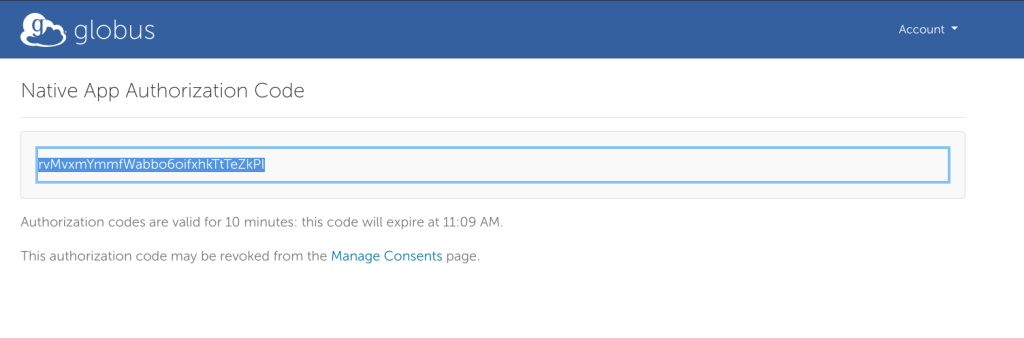
Enter the auth code: rvMvxmYmmfWabbo6oifxhkTtTeZkPI

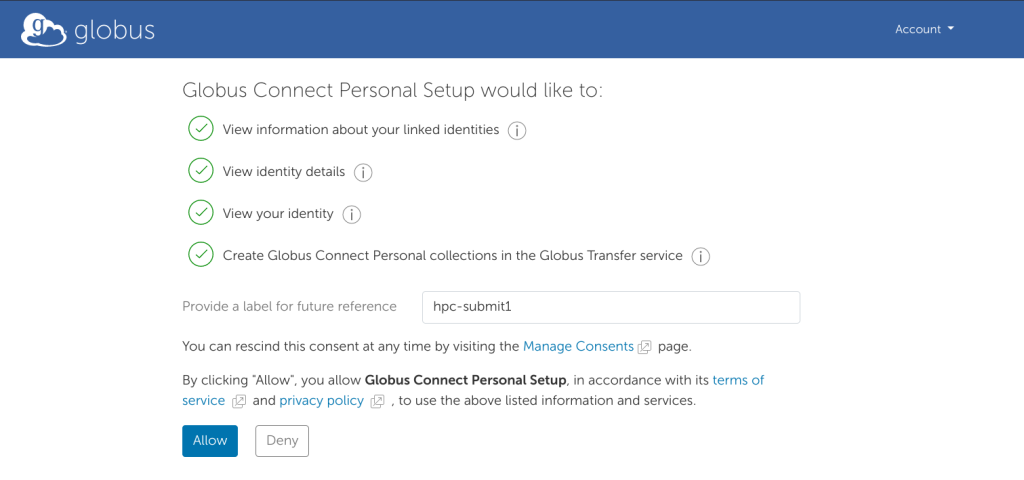
Copy and paste the link into a browser, log in and allow the permissions.

Copy the Authorization code and paste it back into the terminal

[c@asha globusconnectpersonal-3.2.3]$ ./globusconnectpersonal -setup
Globus Connect Personal needs you to log in to continue the setup process.


We will display a login URL. Copy it into any browser and log in to get a single-use code. Return to this command with the code to continue setup.
Login here: —– https://auth.globus.org/v2/oauth2/authorize? client_id=4d6448ae-8ca0-40e4-aaa9-8ec8e8320621&redirect_uri=https%3A%2F%2Fauth.globus.org%2Fv2%2Fweb%2Fauth-code&scope=openid+profile+urn% 3Aglobus%3Aauth%3Ascope%3Aauth.globus.org%3Aview_identity_set+urn%3Aglobus%3Aauth% Ascope%3Atransfer.api.globus.org%3Agcp_install&sM&code_challenge_method=S256&access_type=online&prefill_named_grant=hpc-submit1 —– Enter the auth code: rvMvxmYmmfWabbo6oifxhkTtTeZkPI
== starting endpoint setup

Input a value for the Endpoint Name: c123456789-asha registered new endpoint, id: 5eda6996-fe6e-11ee-8264-43ed2d92f852 setup completed successfully

[c@asha globusconnectpersonal-3.2.3]$

(Optional) Add more directory locations.

Edit the file  ~/.globusonline/lta/config-paths

add a line

[path],[share: 0=no, 1=yes],[read + write: 0=no, 1=yes]

e.g. “/scratch/<br>,0,1”  for the path /scratch/your home directory to have read write but not shareable.

[c@asha globusconnectpersonal-3.2.3]$ cat ~/.globusonline/lta/config-paths
~/,0,1
/scratch/c,0,1

Start the Server 

[c@asha globusconnectpersonal-3.2.3]$ ./globusconnectpersonal -start

It gives no output/feedback to let you know it started. If you want this in the background use “&” or set up a service file. 

Log into the Web Portal

Globus Web Portal (https://www.globus.org)

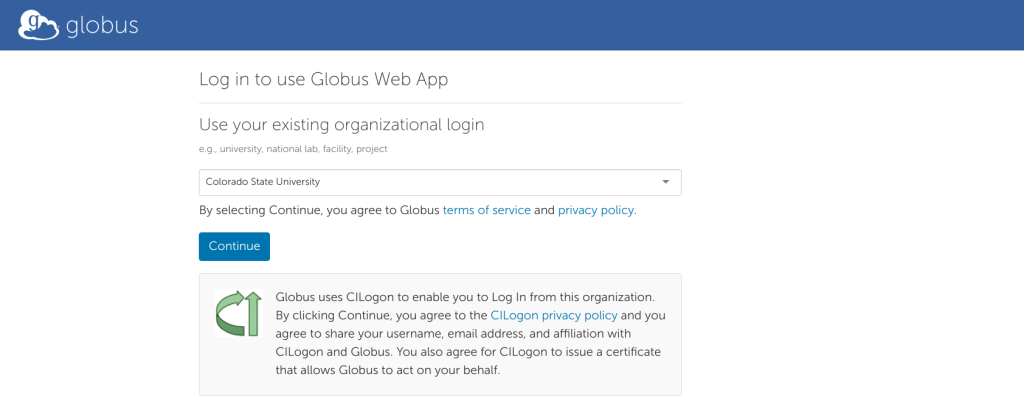
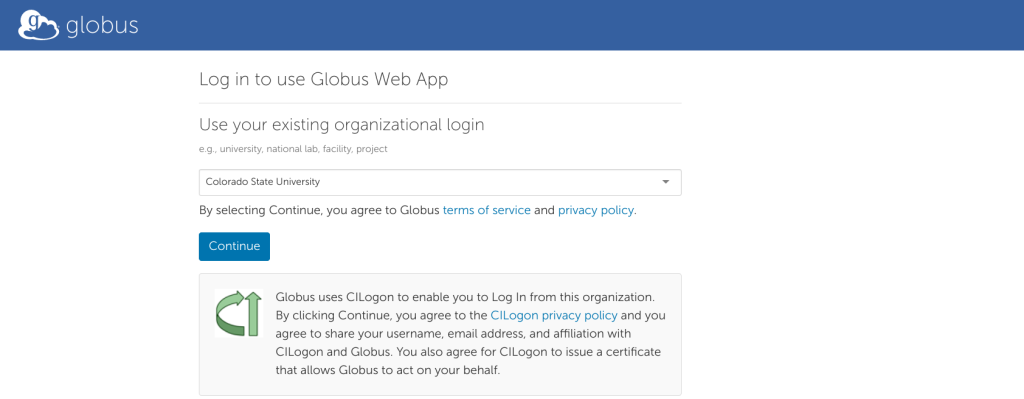
Sign into Globus using Organizational login. Will forward you to shibboleth + 2fa

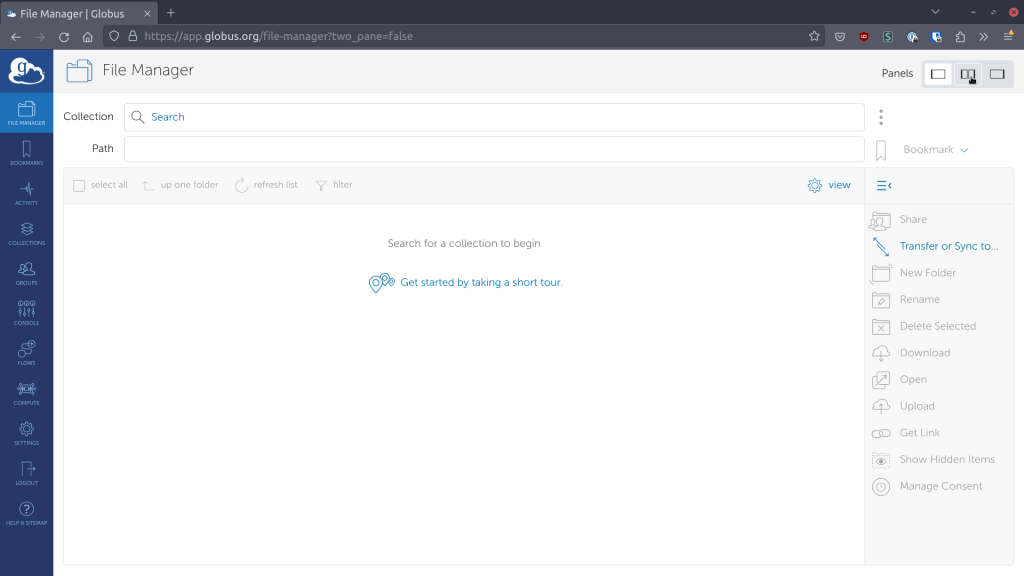
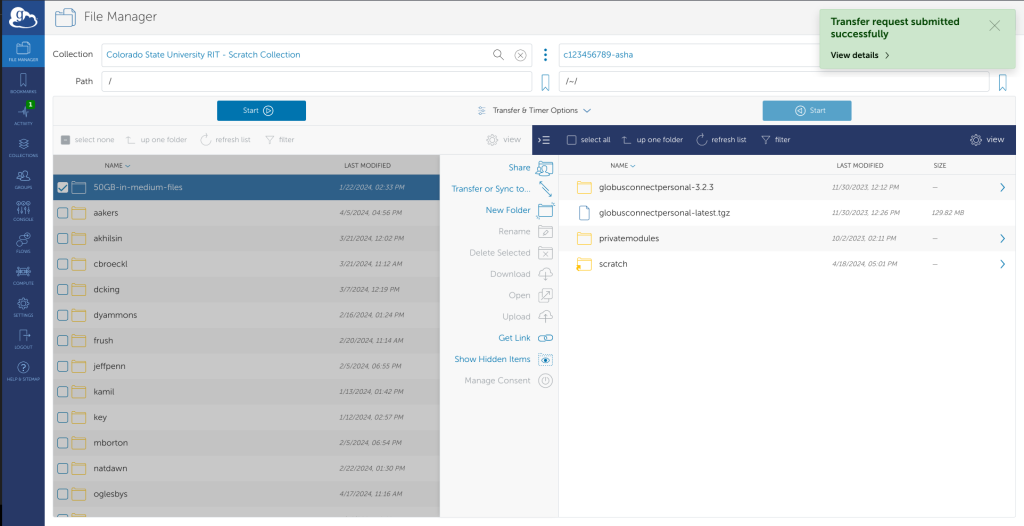
On login, chose the file manager on the left and its easiest to split the pane in the upper right

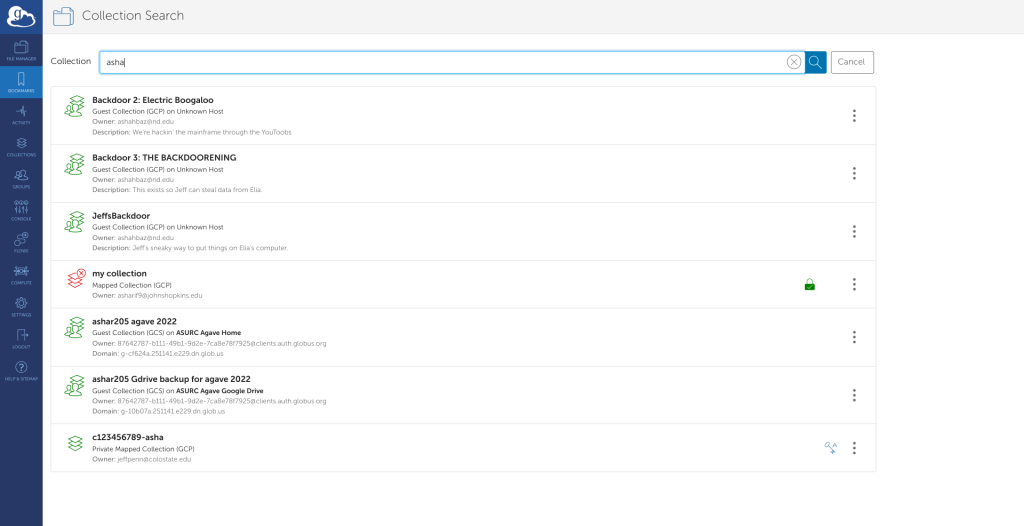
Search for the collection (AKA endpoints) you want to download from and to in each of the panels.

Drag and drop from one side of the other, or use one of the options from the popup menu.

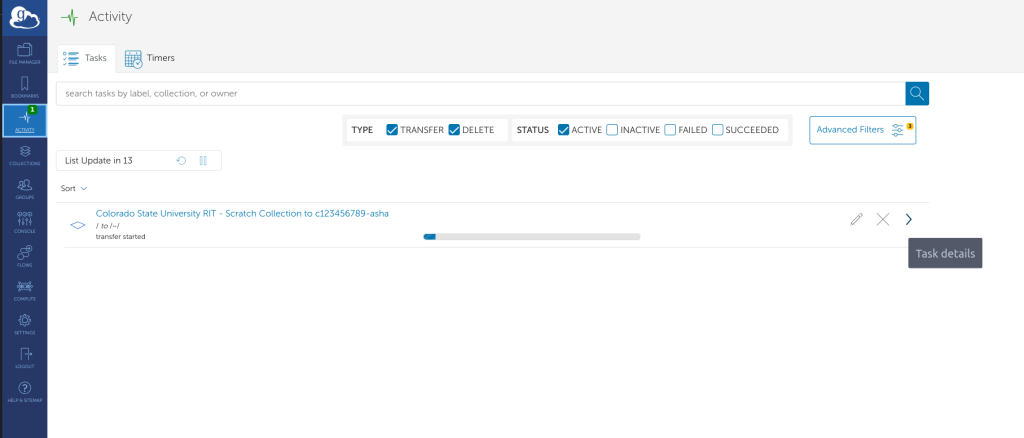
The transfer job will start. You can check logs/and completion status from the left hand side “Activity” tab. As shown above a green “1”. From there you can press the “>” button for more details on a job.

Open Ondemand

Navigate to OnDemand portal and login

https://cashew-ondemand.engr.colostate.edu/

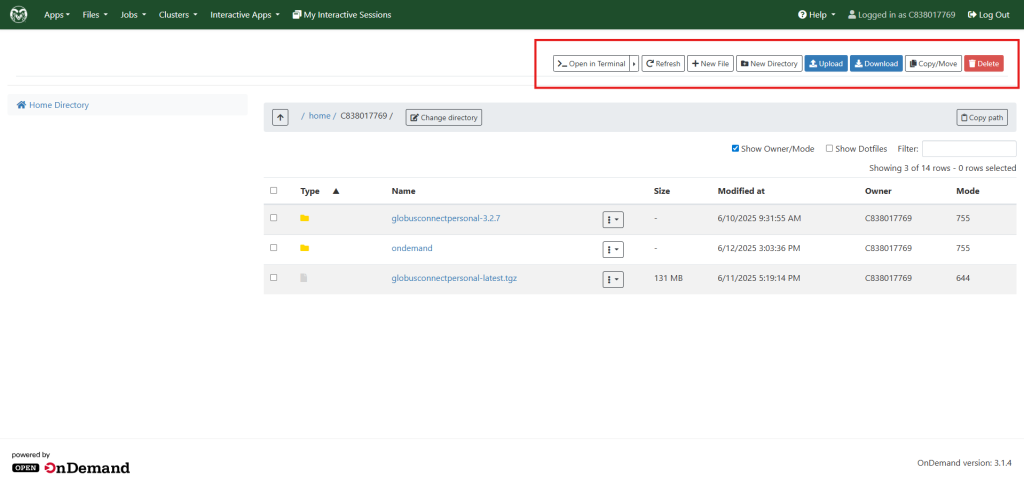
Go to Files tab 

Make use of the toolbar highlighted in red to perform the required actions

Other available methods

Rsync – Recommended 

rsync is a powerful linux utility to synchronize files which uses SSH protocol.It is highly recommended over other commands for large directories  due to its efficiency, ability to resume transfers after interruptions  and preserve file attributes.

It should be installed on both source and destination machines

Basic Syntax to use

rsync [OPTION]... SOURCE DESTINATION

To copy files from local machine to remote machine
Push method:

rsync -avz /path/to/local/source/ user@remote_host:/path/to/remote/destination/

Pull Method:

rsync -avz user@remote_host:/path/to/remote/source/ /path/to/local/destination/

You can use –help flag to get learn about more options.

rysnc --help