ECE411 Lab Exercise #2
Introduction to Simulink
Objectives
This laboratory exercise is intended to provide a tutorial introduction to Simulink. Simulink is a Matlab toolbox for analysis/simulation of interconnections of dynamic systems, and it will be used heavily throughout the rest of the course/lab. All the exercises in this assignment can be done entirely in Matlab/Simulink.
1) Running,
Plotting, Printing: In order to see a demonstration
Simulink diagram, type sldemo_househeat at the Matlab prompt. Open the scope
block, labeled “PlotResults” by double clicking, and then run the simulation
using the buttons or pull down menus provided.
Print the plot of the
simulation output (scope block) and print the simulation model itself.
2) Model Building: Figure 1 shows a Simulink model which
represents the motor gear system in the Controls lab, with a PID controller
implemented in feedback around it.
Launch the simulink library browser from within Matlab by using the
button or typing simulink. Then open a new model (using button or pull
down menus), and build a coy of the above model. This is achieved by dragging components from
the library to the model and connecting them using the mouse. Double clicking a box then allows you to edit
the components, such as entering values for the Transfer function (as
shown). For the PID block, set the
proportional gain to 0.05, and the integral and derivative gains to zero.
Look
around at the many available blocks in Simulink. You will certainly need to look in Sources, Sinks, Continuous, Math, Signals
& Systems, as well as Additional
Linear under Simulink Extras for
the PID controller.
Note
that there is no block for “Pulse Input”, but that has been made for you from
basic components using the Create Subsystem
command under Edit. The contents of the
box are shown in figure 2. You can even
use the Mask Subsystem command to
generate your own library blocks.
When you
have built a copy of the model, save it with the name “gear”. (It will actually be saved as gear.mdl.) You can then launch this model later from
Matlab simply by typing gear at the command line. Go under Simulation to Parameters and set the
simulation time to 8 seconds.
Run the simulation and print
the results from the scope block. You should get a plot like
figure 3, which shows the commanded response and actual system response (note
the autoscale button on the scope). Note
that in order to get the correct commanded responses you will need to enter the
appropriate values for the two step input blocks that
make up your pulse input.
Having
completed this exercise, you should have a model plot and a simulation run that
essentially reproduce the figures shown here.
Now try varying the parameters of the PID controller and see how they
affect the closed-loop control system (note that you can enter variable names
in Simulink Blocks if you like, and it will read them from the Matlab
workspace). You do not need to generate
large numbers of plots, but Plot a few
of the results and discuss how the different
controller parameters (Proportional, Integral, and Derivative) affect the
closed loop performance. See if you can
manually tune the controller to get a good step response. Later in the semester we will revisit this
problem with design tools we have learned in class, and try them out both in
simulation (as here) and on the actual hardware.

Figure 1: Simulink model of
motor gear drive system

Figure 2: Pulse input subsystem
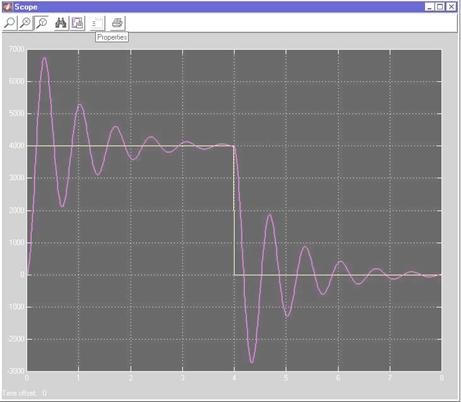
Figure 3: Gear Plot